Viral Trend Capcut Template – Nowadays, a unique style of video editing is going viral on Instagram, and people are using this trend to create highly engaging reels. In this editing style, the video starts with a normal romantic clip and soft music, but suddenly the scene changes into an “attitude” vibe with a powerful track and stylish effects. Because of this dramatic transition, these videos are getting massive views on social media.
If you also want to create this type of trending reel, then this article will help you a lot. Here, I will explain how you can use a CapCut template to edit your video automatically without doing complicated manual editing. You only need to follow the steps properly, and your viral-style video will be ready within minutes.
Details Of Viral Trend Capcut Template
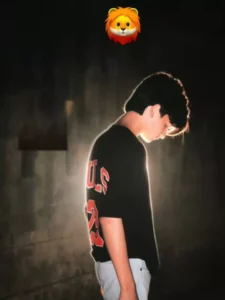
The editing style used in this template is very creative and eye-catching. At the beginning of the video, a normal romantic clip plays with a soft blur effect, giving the reel a simple cinematic opening. After a few moments, the mood of the video changes completely, and the clip switches to an “attitude” track by Sidhu Moose Wala. The second part of the edit uses a screenshot taken from the original video clip. This screenshot is edited with an AI-style aesthetic filter before being added into the template. Most creators are using the popular “Lo-Fi Dusk” filter from Instagram to give the image a dark cinematic look. Along with this, glitch effects and vibration effects are added to make the transition more powerful and stylish. This editing style mainly shows two different moods in one video — a calm romantic vibe at the beginning and a bold attitude vibe in the second half. That is the main reason why this trend is becoming extremely viral on Instagram Reels and other social media platforms.
Process Of This Video Editing
To create this type of video, you only need one good video clip. Try to record a walking or attitude-style clip where you appear confident and stylish. While recording, make sure you hold a strong pose at the end of the clip because you will need to capture a screenshot from that moment. After taking the screenshot, apply the “Lo-Fi Dusk” filter or any cinematic aesthetic filter to the image. Once your filtered image is ready, open the template. Add your original video clip in the first section and insert the edited screenshot in the second section. The template will automatically apply all the transitions, effects, and music sync to your video.
How To Use Viral Trend Capcut Template
So friends, I have now shared with you all the important information regarding this template. Now, let me explain how you can use it to edit your own photos. To use any CapCut template, you simply need to open the CapCut application and click on the “Templates” option you see there; you will find an unlimited selection of templates available. You can search for the specific name of this template within the app to locate it and start using it. However, sometimes the exact template we are looking for does not appear, even after searching. In such cases, there is an alternative method, which I will guide you through step-by-step.
- First, click on the “Check Template” button provided within this article.
- This will open the template directly within the CapCut application.
- Next, click on the “Use” option and add the required video clips from your device.
- Then, click “Next” and wait for a few moments while the template automatically edits your video.
- After a short while, your edited video will be ready; you can then save it using the “Export” option.
- In this way, the system will automatically edit and finalize your video.
Conclusion
So friends, this is how you can easily create your own viral “Attitude Trend” video using a CapCut template. This editing style is currently getting huge attention on social media because of its unique transition from a romantic vibe to an attitude look. If you follow this trend and use the template properly, your video can also attract more views and engagement. I hope you liked this article and understood the editing process clearly.